Quick start
Install the plugin from the WordPress directory and activate it. Go to Settings → LoginSentinel. The notification email defaults to your site admin address — change it if you want alerts to go somewhere else. Click Send Test Email to verify delivery, save the settings, and the plugin starts watching for logins. The next time you (or anyone else) signs in, you'll get an email.
That's the entire setup. There is no onboarding wizard, no account creation, no API key.
Settings reference
The settings page is at Settings → LoginSentinel. Free and Pro share the same page; the Pro-only sections only appear when the Pro plugin is active.
General
Enable LoginSentinel — the master switch. When unchecked, no alerts are sent and (Pro) no failed-login tracking happens. The login history continues recording if its own toggle is on.
Notification Email — the email address that receives every alert. Defaults to your site admin email. Accepts any valid email address.
Notify All Admins (Pro only) — when checked, alerts are also sent to the email address of every user with the Administrator role on the site. Useful for agencies or teams where multiple admins should know about each login.
Geolocation
(Pro only)
Show Location in Alerts — when checked, alerts include the city and country of the login IP. Lookups are performed against ipapi.co (free, no API key required, HTTPS). Each unique IP is cached for 24 hours, so repeat logins from the same address don't re-query the service. If ipapi.co is unreachable, the alert is sent without location data — the login itself is never delayed.
Circuit breaker behavior: if 10 consecutive geo lookups fail, the plugin stops calling ipapi.co for 5 minutes to avoid hammering a service that's down. Lookups resume automatically after the cooldown.
Failed Login Detection
(Pro only)
Enable Failed Login Alerts — when checked, the plugin tracks repeated failed login attempts and alerts when a threshold is reached.
Alert Threshold — the number of failed attempts from the same IP+username combination that triggers an alert. Default 3. Range 1–20. Lower numbers are more sensitive; higher numbers tolerate normal user mistakes.
Re-alert Cooldown — the number of seconds to wait after a brute-force alert before sending another for the same IP+username. Default 3600 (1 hour). This prevents a sustained attack from filling your inbox with hundreds of alerts — the plugin sends one, then waits, then sends another after the cooldown if the attack is still happening.
New Device Detection
(Pro only)
Flag New Devices — when checked, alerts include a NEW DEVICE flag in the subject line and body when the IP+browser combination has never produced a successful login before. After the first successful login from a given IP+browser, future logins from the same combination are not flagged.
Login Log
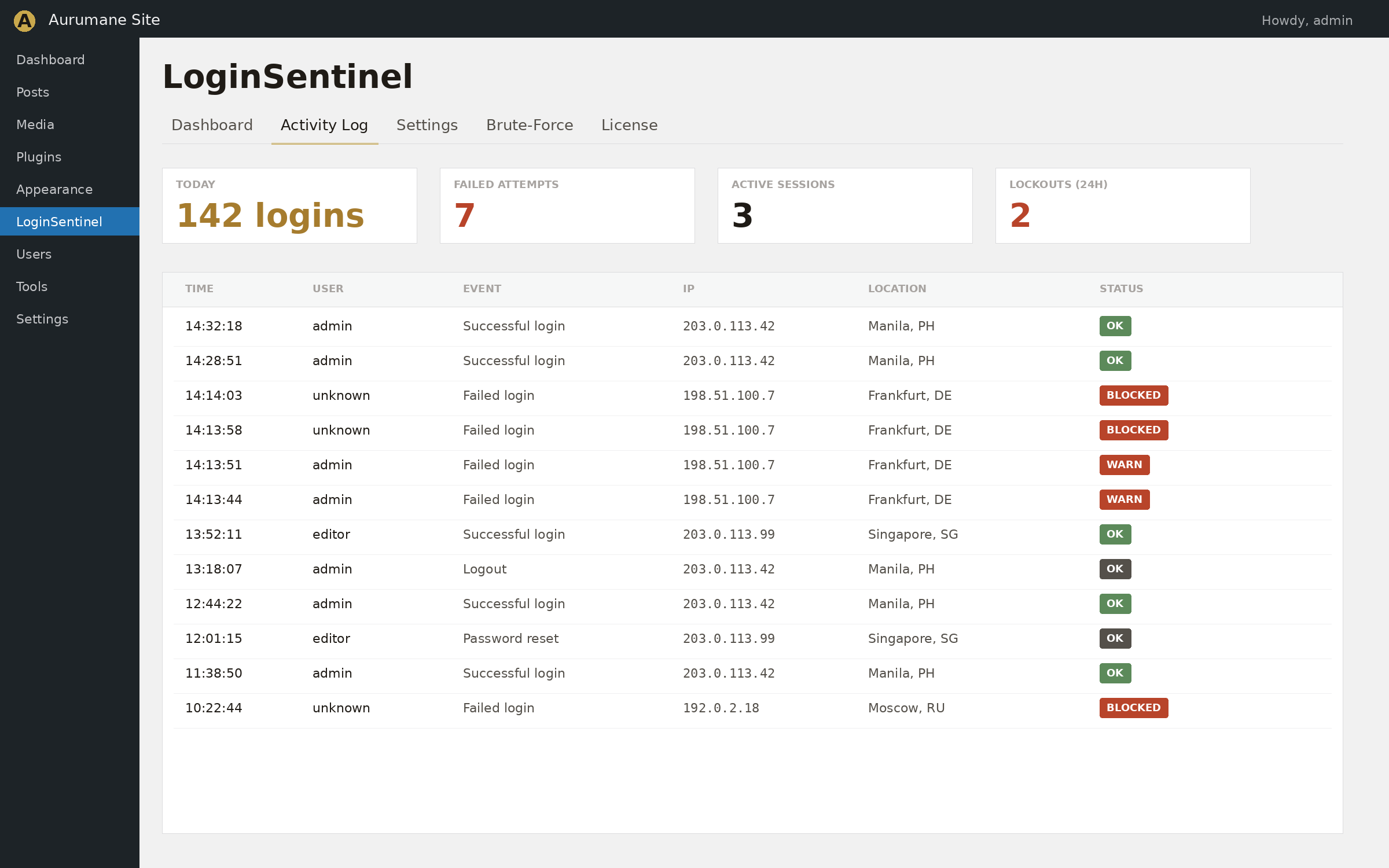
Enable Login Log — keeps a record of recent logins in your dashboard. The log appears at the bottom of the settings page. Free retains the last 20 entries (success only). Pro retains successes and failures with location and device data.
Log Limit (Pro only) — the maximum number of entries to keep. Default 100. Range 10–500. Older entries are pruned automatically when the limit is exceeded.
License
(Pro only)
License Key — paste the key from your Lemon Squeezy purchase receipt and click Activate. The plugin contacts the Lemon Squeezy API once to register the site, then unlocks the Pro features. To move the license to a different site, click Deactivate License on the current site first — this frees up the seat.
What's in each alert
Every successful-login alert contains:
- Username, email address, and role
- IP address (Cloudflare-aware detection)
- Location (Pro): city and country, where available
- Browser user-agent string
- Login timestamp and timezone
NEW DEVICE flag (Pro) when the IP+browser combination is unrecognized- Direct links to the admin dashboard and profile page
Every failed-login alert (Pro) contains:
- The username that was attempted
- IP address and location
- Browser user-agent
- Number of failed attempts so far
- Suggested next steps (change password, block IP, install firewall)
All emails are sent as plain text using wp_mail(), so they work with any SMTP plugin you've configured.
Common workflows
Multi-admin agency site
Enable Notify All Admins in the General section. Every administrator on the site will receive an alert email any time anyone logs in. Useful when several agency staff have admin access and one of them needs to know about activity.
Adjust brute-force sensitivity
The defaults (3 attempts / 1-hour cooldown) work for most sites. For a public-facing site that gets a lot of legitimate login traffic, increase the threshold to 5 or 10 to reduce noise. For a private staging or admin-only site where any failed attempt is suspicious, drop the threshold to 1 and the cooldown to a longer window so you only get one alert per attack burst.
Mute alerts temporarily without uninstalling
Uncheck Enable LoginSentinel in the General section and save. Alerts stop. The login history continues recording (if enabled) so you can still see who signed in while alerts were paused. Re-enable when you're ready.
Move Pro to a new site
On the current site, go to Settings → LoginSentinel → License and click Deactivate License. The seat is freed. Install Pro on the new site, paste the same key, click Activate. Done.
Troubleshooting
I'm not receiving alert emails
Visit Settings → LoginSentinel and click Send Test Email. If it fails, the issue is with WordPress's wp_mail() — LoginSentinel hasn't received it. Most shared hosts have unreliable PHP mail. Install a transactional email plugin (FluentSMTP, WP Mail SMTP, Post SMTP) and configure it with a real SMTP provider (Postmark, SendGrid, Mailgun, Amazon SES). The test email should then arrive.
If the test passes but real login alerts don't arrive, check the Enable LoginSentinel toggle and the spam folder of your notification email.
Geolocation says "Unknown" or alerts arrive without location data
The plugin uses ipapi.co with a 3-second timeout. If the lookup fails, the alert is still sent — just without location data. Common causes:
- The visitor's IP is a private/local address (e.g.
192.168.x.x or 127.0.0.1) — you'll see "Local Network" instead
- ipapi.co is temporarily slow or unreachable — the plugin opens its circuit breaker after 10 failures and stops calling for 5 minutes
- The free ipapi.co tier has a soft cap of 1,000 lookups per day — high-traffic sites may exceed this
The plugin caches each IP's lookup for 24 hours, so even a busy site rarely makes more than a few hundred unique calls per day.
The IP shows as the proxy IP, not the real visitor
LoginSentinel checks HTTP_CF_CONNECTING_IP (Cloudflare), HTTP_X_FORWARDED_FOR, and HTTP_X_REAL_IP before falling back to REMOTE_ADDR. If the real IP isn't appearing, your reverse proxy isn't setting these headers. Check your proxy configuration. Most hosts and CDNs (Cloudflare, Sucuri, Cloudflare Tunnel, KeyCDN) set these correctly out of the box.
I'm getting alerts even though I disabled them
Make sure you saved the settings page after unchecking Enable LoginSentinel. The toggle takes effect immediately on save. If alerts continue, another security plugin may be sending them (Wordfence, iThemes Security, Limit Login Attempts) — LoginSentinel doesn't conflict with those, but they have their own alert systems.
I'm getting too many failed-login alerts
Increase the Alert Threshold (more attempts before an alert), increase the Re-alert Cooldown (longer wait between repeat alerts for the same source), or both. The cooldown is the most effective lever during a sustained attack — setting it to 86400 (1 day) means each attacking IP only generates one alert per day no matter how many attempts they make.
Frequently asked questions
Will I get an alert when I log in myself?
Yes. By design. It lets you immediately verify the plugin is working, and it surfaces any logins you didn't make yourself.
Does this slow down my site?
No. The only code that runs on a normal page load is the loading of the plugin file. The alert logic only fires when WordPress's wp_login action triggers, which happens once per successful login. The geolocation lookup (Pro) is a single HTTP request with a 3-second timeout, and it only happens after the user has already been logged in — it doesn't delay the login itself.
Does it work behind Cloudflare or other reverse proxies?
Yes. IP detection checks HTTP_CF_CONNECTING_IP, HTTP_X_FORWARDED_FOR, and HTTP_X_REAL_IP before falling back to REMOTE_ADDR.
Where is the data stored?
In two custom database tables on your own site: wp_ls_log (login history) and wp_ls_failed (failed-attempt counters, Pro only). Nothing is sent externally except the optional ipapi.co geolocation lookup, which only sends the IP being looked up — no user information.
Does it integrate with security plugins like Wordfence or iThemes Security?
Yes — LoginSentinel only listens for the standard wp_login and wp_login_failed WordPress hooks. It doesn't conflict with firewalls, rate limiters, or 2FA plugins. You can run it alongside any of them.
How do I uninstall completely?
Deactivate the plugin and delete it from the Plugins screen. The plugin's database tables, options, and scheduled events are removed automatically by the uninstaller.
Developer hooks
LoginSentinel exposes filters and actions for integrations.
Filter: loginsentinel_should_alert
Return false to suppress an alert for a specific login event. Useful for skipping alerts on automated cron-runner accounts or load-balancer health checks.
add_filter( 'loginsentinel_should_alert', function( $should, $username, $user ) {
    if ( $username === 'cron-runner' ) {
        return false;
    }
    return $should;
}, 10, 3 );
Filter: loginsentinel_alert_recipients
Modify the email recipient list before alerts are sent. The second argument is a context array containing event type, IP, username, and user data.
add_filter( 'loginsentinel_alert_recipients', function( $recipients, $context ) {
    if ( $context['event'] === 'failed_threshold' ) {
        $recipients[] = 'security-team@example.com';
    }
    return $recipients;
}, 10, 2 );
Action: loginsentinel_alert_sent
Fires after an alert email has been dispatched. Useful for logging to a central system, posting to Slack, or triggering downstream automation.
add_action( 'loginsentinel_alert_sent', function( $context, $subject, $recipients ) {
    error_log( 'LoginSentinel alert: ' . $subject );
}, 10, 3 );
Support
Questions, bug reports, and feature suggestions go to info@aurumane.com. Pro license holders get a faster reply. Free users get the same answer, just sometimes a day later. Either way, the reply comes from the developer who wrote the plugin.